Introduction
Buying a new laptop should feel exciting, not confusing. Yet one small choice can slow people down fast: should you choose Windows 11 Home or Windows 11 Pro?
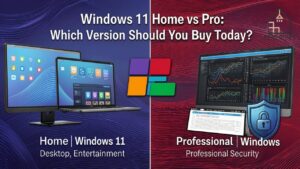
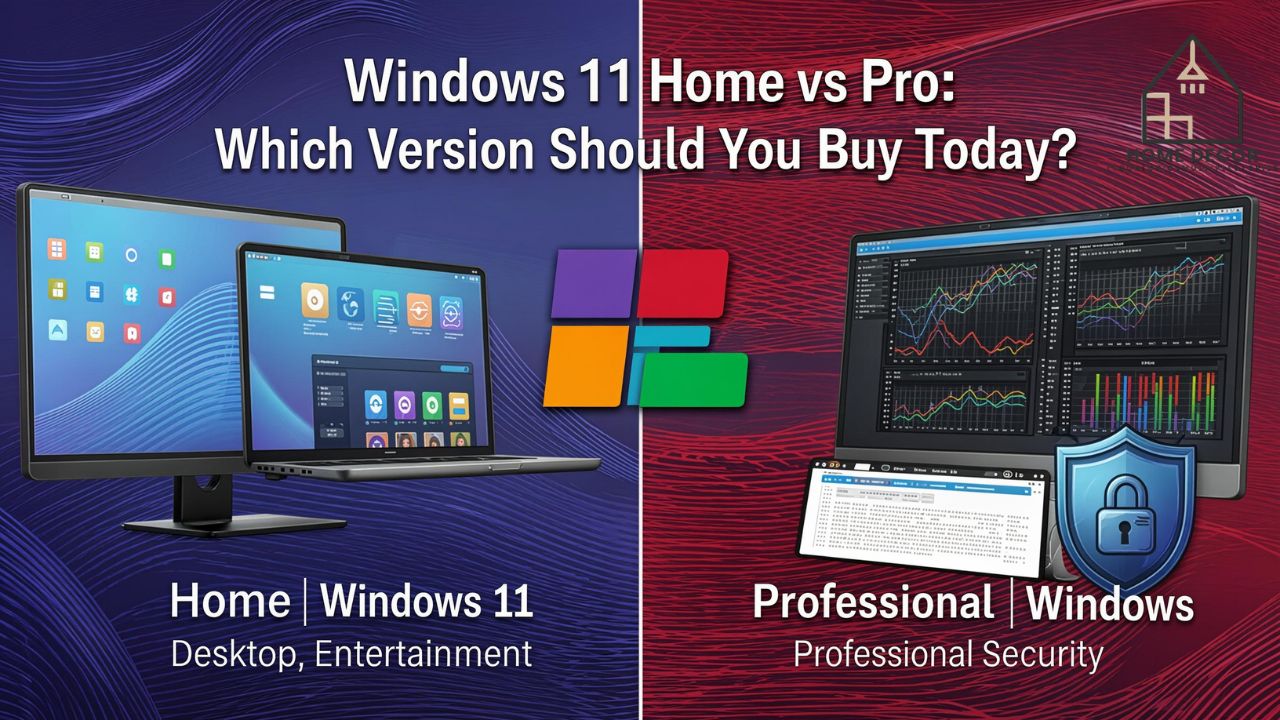
That is why this windows 11 home vs pro guide matters. Both editions look almost the same at first glance, but the difference becomes clear when you need stronger security, remote access, virtualization, or business management tools.
For most everyday users, Windows 11 Home is more than enough. It gives you the familiar Windows experience, Microsoft Store, widgets, Snap layouts, gaming features, and daily productivity tools.
Windows 11 Pro, on the other hand, is made for users who need more control. It includes business-focused tools such as BitLocker, Remote Desktop hosting, Hyper-V, Group Policy, and domain joining. Microsoft’s official comparison also lists these Pro-level management and security features separately from Home.
What Is Windows 11 Home?
Windows 11 Home is the standard edition designed for personal use. It is built for students, families, casual users, gamers, streamers, and people who use their PC for normal daily tasks.
You can browse the internet, attend online classes, watch Netflix, play games, edit documents, use Microsoft 365, install apps, manage photos, and connect devices without feeling limited.
Windows 11 Home includes the core Windows 11 experience. You still get the redesigned Start menu, Snap layouts, virtual desktops, Microsoft Edge, Windows Security, Windows Hello, DirectX 12 support, and regular updates.
In simple words, Home is not a “weak” version. It is the version most people actually need.
What Is Windows 11 Pro?
Windows 11 Pro includes everything in Windows 11 Home, then adds tools for business, security, IT control, and advanced workflows.
The Pro edition is useful for business owners, remote workers, developers, IT admins, freelancers, cybersecurity-conscious users, and anyone managing work devices.
The biggest Pro features include:
- BitLocker drive encryption
- Remote Desktop hosting
- Hyper-V virtualization
- Windows Sandbox
- Group Policy Editor
- Domain join
- Microsoft Entra ID support
- Assigned Access
- Kiosk mode
- Windows Update for Business
These tools are not needed by everyone. But for the right user, they can save time, reduce risk, and make device management much easier.
Windows 11 Home vs Pro: Quick Comparison Table
| Feature | Windows 11 Home | Windows 11 Pro |
|---|---|---|
| Everyday browsing and apps | Yes | Yes |
| Microsoft Store | Yes | Yes |
| Windows Hello | Yes | Yes |
| Gaming features | Yes | Yes |
| BitLocker | No | Yes |
| Remote Desktop host | No | Yes |
| Hyper-V | No | Yes |
| Windows Sandbox | No | Yes |
| Group Policy Editor | No | Yes |
| Domain join | No | Yes |
| Best for | Personal users | Business and power users |
Main Differences Between Windows 11 Home and Pro
The real difference is not the design. Both editions look and feel almost identical during normal use.
The difference is control.
Windows 11 Home gives you the main Windows experience. Windows 11 Pro gives you advanced tools to secure, manage, and connect a computer in professional environments.
1. BitLocker Drive Encryption
BitLocker is one of the biggest reasons people upgrade to Pro. It encrypts your drive so your data stays protected if your laptop is lost or stolen.
Imagine you travel often with a work laptop. If someone steals it, they may remove the storage drive and try to read your files. BitLocker makes that much harder because the data is encrypted.
Microsoft lists BitLocker and BitLocker To Go as features available in Pro and higher editions.
2. Remote Desktop Hosting
Windows 11 Home can connect to another computer using Remote Desktop, but it cannot act as the host PC in the same built-in way.
Windows 11 Pro can host Remote Desktop sessions. This means you can access your Pro PC from another device when configured correctly.
This is useful for:
- Office computers
- Remote workers
- IT support
- Small business owners
- Developers accessing a work machine
3. Hyper-V Virtualization
Hyper-V lets you run virtual machines on your PC. Developers, testers, and IT learners use it to run other operating systems or isolated environments.
For example, a developer may run a Linux virtual machine inside Windows. A cybersecurity student may test tools in a safe virtual space. An IT admin may test software before installing it on a real work system.
Microsoft notes that Client Hyper-V requires supported hardware and is available in Pro editions and higher.
4. Group Policy Editor
Group Policy is mainly useful for advanced users and IT teams. It lets you control system behavior in a more detailed way.
For example, a company can restrict access to certain settings, manage update behavior, control password rules, and apply security policies.
Most home users never open Group Policy. But in offices, schools, and managed environments, it can be very useful.
5. Domain Join and Business Identity
Windows 11 Pro can join business domains and connect with Microsoft Entra ID. This matters when a company manages employee devices centrally.
For normal home users, this feature does not matter. For businesses, it can be a major requirement.
Security Features Compared
Security is one of the strongest points in the <strong>windows 11 home vs pro</strong> debate.
Both editions include core security protections, including Windows Security, Microsoft Defender Antivirus, firewall protection, Secure Boot support, TPM-based protections, and Windows Hello.
Microsoft’s Windows 11 system requirements include TPM 2.0, Secure Boot capability, 4 GB RAM, 64 GB storage, and a compatible 64-bit processor.
Security Features in Windows 11 Home
Windows 11 Home is safe enough for most personal users. It includes:
- Microsoft Defender Antivirus
- Windows Firewall
- Secure Boot support
- TPM 2.0 requirement
- Windows Hello
- Device encryption on supported devices
- App and browser control
- Family safety controls
For everyday browsing, online classes, banking, gaming, and streaming, these protections are usually enough.
Security Features in Windows 11 Pro
Windows 11 Pro adds stronger security tools, especially for sensitive data and business devices.
Extra Pro security features include:
- BitLocker
- Windows Information Protection features in business environments
- Group Policy security controls
- Assigned Access
- Enterprise-style device management options
If your laptop contains client data, financial records, employee files, legal documents, business accounts, or private work files, Pro becomes more attractive.
Performance, Gaming, and Daily Use
Here is the truth many buyers miss: Windows 11 Pro does not automatically make your PC faster.
If two laptops have the same processor, RAM, SSD, and graphics card, Windows 11 Home and Pro will feel nearly identical for normal tasks.
Gaming Performance
For gaming, Windows 11 Home is usually the better value. You still get important gaming-related features such as DirectX 12 support, Auto HDR on supported displays, Xbox app access, Game Bar, and modern hardware support.
Pro does not increase FPS by itself. Your graphics card, CPU, RAM, storage speed, and cooling matter far more.
Choose Pro for gaming only if you also need Pro features for work, security, or virtualization.
Everyday Productivity
For writing, browsing, online meetings, spreadsheets, Canva, Photoshop, coding basics, and schoolwork, Home works beautifully.
You do not need Pro just to use:
- Microsoft Word
- Excel
- Chrome
- Zoom
- Google Drive
- YouTube
- Canva
- Adobe apps
- Basic coding tools
- Printers and scanners
That said, Pro makes sense if your productivity work involves remote access, client data protection, virtual machines, or business device management.
Business and Professional Use
Windows 11 Pro is clearly better for business use.
A small business may start with normal laptops, but as the team grows, device control becomes important. You may need to secure files, manage accounts, apply company policies, or allow remote access.
Who Should Choose Windows 11 Pro?
Choose Pro if you are:
- A business owner
- A freelancer handling sensitive client files
- A remote employee
- A developer using virtual machines
- An IT student or system admin
- A cybersecurity learner
- A consultant
- A user who needs Remote Desktop hosting
- Someone who wants BitLocker protection
Who Should Choose Windows 11 Home?
Choose Home if you mainly use your PC for:
- Browsing
- Online classes
- Gaming
- Streaming
- Social media
- Office documents
- Personal finance
- Photo storage
- Light creative work
- Normal home use
For most families and students, Home is the sensible choice.
Hardware Requirements and Setup
Both editions share the same minimum Windows 11 system requirements.
Microsoft lists the minimum requirements as a 1 GHz or faster processor with 2 or more cores, 4 GB RAM, 64 GB storage, UEFI with Secure Boot, TPM 2.0, DirectX 12 compatible graphics, and a display over 9 inches with 720p resolution.
Microsoft Account Requirement
Microsoft says Windows 11 Home and Windows 11 Pro for personal use require internet connectivity and a Microsoft account during initial setup.
This matters because some users expect to set up Windows fully offline. In reality, Microsoft has pushed both editions toward online account setup for personal use.
RAM and Hardware Limits
Most users will never hit edition-level hardware limits. A normal laptop with 8 GB, 16 GB, or 32 GB RAM will run fine on either edition.
Pro is better suited for higher-end business and workstation-style setups, but hardware limits rarely affect everyday buyers.
Windows 11 Home vs Pro for Students
Students usually do not need Pro.
If you are writing assignments, attending Zoom classes, browsing research papers, using Google Docs, coding beginner projects, watching lectures, or playing games after class, Windows 11 Home is enough.
Pro may be worth it for students studying:
- Computer science
- Networking
- Cybersecurity
- Cloud computing
- IT administration
- Software testing
Why? Because those fields often involve virtualization, remote access, and advanced system settings.
A computer science student who needs Hyper-V may appreciate Pro. A business student writing reports probably will not notice the difference.
Windows 11 Home vs Pro for Developers
Developers are split.
Some developers can work perfectly on Home. If you build websites, use VS Code, run Node.js, install Git, and deploy to cloud platforms, Home can handle that.
But Pro becomes useful when your workflow includes:
- Hyper-V
- Docker features that depend on virtualization
- Windows Sandbox
- Remote Desktop host access
- Multiple isolated testing environments
- Advanced networking labs
For serious development work, Pro is often the safer long-term choice.
Windows 11 Home vs Pro for Small Business
Small businesses should strongly consider Pro.
At first, Home may feel cheaper. But the missing features can become frustrating later.
For example, suppose a small accounting firm buys five laptops with Windows 11 Home. Later, they want BitLocker, policy controls, and domain-based login. Now they may need upgrades anyway.
Pro is a better fit for businesses that care about:
- Data protection
- Employee device control
- Remote access
- Compliance habits
- Centralized account management
- Professional IT support
Windows 11 Home vs Pro for Gaming
Gamers should usually buy Home unless they need Pro for another reason.
A gaming PC with Windows 11 Home can run modern games, game launchers, streaming tools, Discord, OBS, Steam, Epic Games Launcher, Xbox app, and graphics drivers normally.
Pro does not magically improve graphics quality. It does not unlock hidden gaming speed. It does not reduce lag by itself.
Spend the extra money on:
- Better GPU
- More RAM
- Faster SSD
- Better monitor
- Improved cooling
- Quality power supply
That will help gaming more than Pro.
Pricing and Upgrade Value
Pricing can vary by country, retailer, OEM license, device bundle, and Microsoft Store availability.
In general, Windows 11 Pro costs more than Windows 11 Home because it includes business and management features.
The better question is not “Which one is cheaper?” The better question is “Will I use the extra features?”
If the answer is no, Home gives better value.
If the answer is yes, Pro can be worth the extra cost.
Can You Upgrade From Windows 11 Home to Pro?
Yes, you can upgrade from Home to Pro without doing a clean installation in most normal cases.
Microsoft describes upgrading as moving to a higher edition within the same operating system, such as Windows 11 Home to Windows 11 Pro.
Usually, the path is:
- Open Settings
- Go to System
- Open Activation
- Choose upgrade edition option
- Enter a valid Pro product key or buy the upgrade
- Restart if required
Your apps and files normally remain in place, but backing up important data is always smart before changing editions.
Common Buying Mistakes to Avoid
Mistake 1: Thinking Pro Is Faster
Pro is not automatically faster. Performance depends more on hardware.
Mistake 2: Buying Home for a Business Team
Home may work at first, but it can become limiting when you need security and management controls.
Mistake 3: Buying Pro Only for Gaming
Most gamers should keep the money and invest in better hardware.
Mistake 4: Ignoring BitLocker
If your laptop contains sensitive business files, BitLocker alone can justify Pro.
Mistake 5: Choosing Based Only on Price
Cheap is good only when it still fits your needs. The wrong edition can cost more later.
Final Verdict: Which One Is Better?
There is no single winner for everyone.
Windows 11 Home is better for most personal users because it gives a clean, modern, secure Windows experience without paying for tools they may never open.
Windows 11 Pro is better for professionals, businesses, developers, IT users, and anyone who needs stronger device control.
If you are still unsure, ask yourself one simple question:
Will I use BitLocker, Remote Desktop hosting, Hyper-V, Group Policy, or business account management?
If yes, choose Pro.
If no, choose Home.
FAQs
Is Windows 11 Pro better than Home?
Windows 11 Pro is better for business, security, remote access, and advanced control. Windows 11 Home is better value for normal personal use.
Does Windows 11 Pro run faster than Home?
No. Pro does not automatically run faster. Speed depends on your processor, RAM, SSD, graphics card, and background apps.
Is Windows 11 Home good for gaming?
Yes. Windows 11 Home is excellent for gaming. Most gamers do not need Pro unless they also need business or advanced technical features.
Does Windows 11 Home have BitLocker?
Windows 11 Home does not include full BitLocker management like Pro. Some Home devices may support device encryption, but BitLocker is a Pro-level feature.
Can I use Remote Desktop on Windows 11 Home?
Windows 11 Home can connect to another PC using Remote Desktop, but it cannot host Remote Desktop sessions like Windows 11 Pro.
Is Windows 11 Pro worth it for students?
Most students are fine with Home. Pro is worth considering for IT, cybersecurity, networking, or software development students.
Can I upgrade Windows 11 Home to Pro later?
Yes. You can usually upgrade through Settings > System > Activation with a valid Pro license.
Which edition is better for small business?
Windows 11 Pro is better for small business because it includes BitLocker, domain join, Group Policy, Remote Desktop hosting, and management tools.
Do both editions need TPM 2.0?
Yes. Windows 11 minimum requirements include TPM 2.0 and Secure Boot capability.
Conclusion
The windows 11 home vs pro decision is really about your daily needs.
Choose Windows 11 Home if you want a reliable PC for study, browsing, entertainment, gaming, and normal productivity. It is simple, familiar, and enough for most people.
Choose Windows 11 Pro if your work involves sensitive files, remote access, virtualization, business accounts, or device management. The extra cost makes sense when those features protect your time, data, and workflow.
For everyday users, Home is the smarter buy. For professionals and businesses, Pro is the safer long-term choice.