Introduction
Your phone says a lot about your day before you even open an app. A cluttered home screen can make simple tasks feel slow, while a clean layout can make your phone feel calmer, faster, and easier to use.
Most people check their phones many times a day, yet they rarely think about the first page they see. That first view can shape your focus, your mood, and even your daily habits.
In reality, the best setup is not about copying someone else’s aesthetic. It is about creating a screen that helps you find what you need quickly, hide what distracts you, and make your device feel more personal.
This guide explains what a home screen is, how it works on phones and tablets, how to organize it, and how to design a layout that looks good without making your life harder.
Security note: for choosing protection for everyday Windows devices, this Windows antivirus comparison is a useful related reference.
What Is a Home Screen?
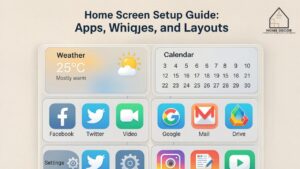
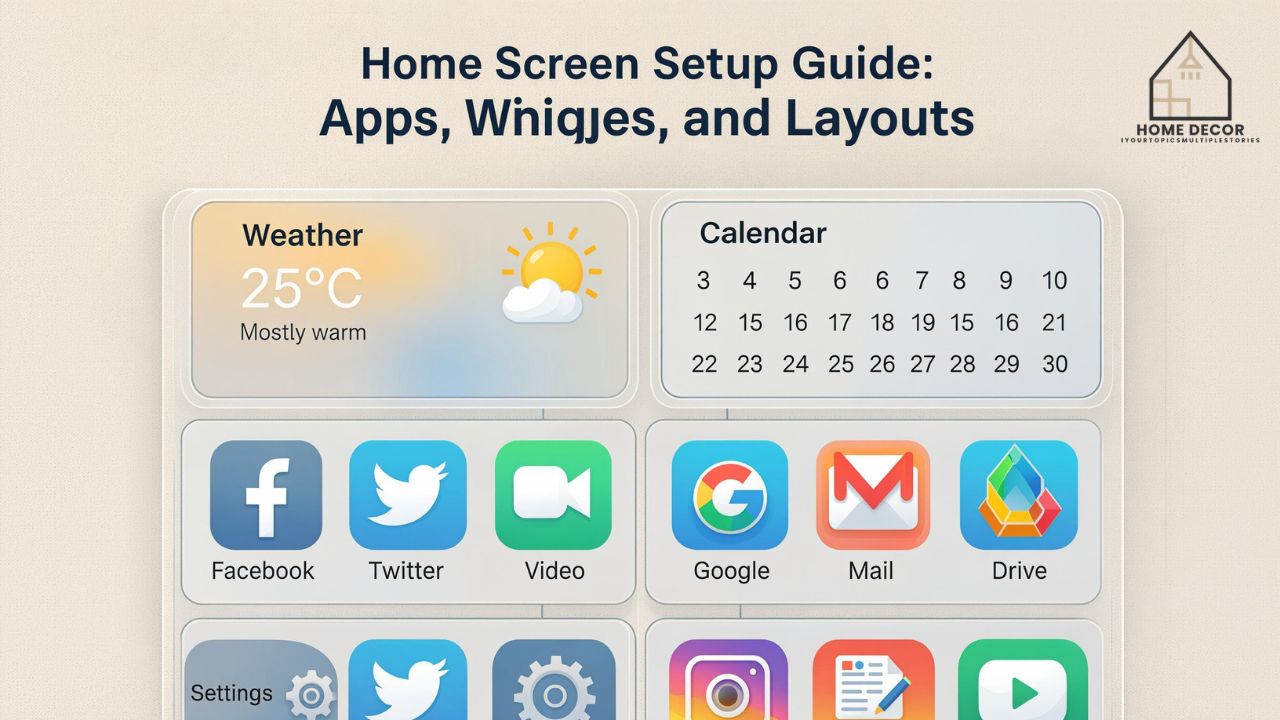
A home screen is the main starting area on a smartphone, tablet, smart TV, or computer interface. It usually shows apps, widgets, folders, shortcuts, wallpaper, search tools, and quick access features.
On a phone, it is the space you return to after unlocking the device or pressing the home gesture. On tablets, it works in a similar way, but with more room for split layouts, larger widgets, and productivity tools.
The idea is simple: it acts like a personal dashboard. You can place the things you use often near the front and push less useful items into folders, secondary pages, or the app drawer.
A good setup reduces friction. Instead of hunting through icons, you can open your camera, calendar, messages, notes, or banking app in seconds.
Simple Definition
A home screen is the main visual workspace of a device where users access apps, tools, widgets, and shortcuts after unlocking or starting the system.
Common Devices That Use One
| Device Type | Typical Use |
|---|---|
| Smartphone | Apps, calls, widgets, shortcuts, notifications |
| Tablet | Apps, notes, calendar, media, productivity tools |
| Smart TV | Streaming apps, settings, content suggestions |
| Laptop launcher | Programs, files, search, pinned tools |
| Smartwatch | Fitness shortcuts, quick actions, complications |
Why Your Phone Layout Matters
Your phone layout affects more than appearance. It influences speed, attention, and decision-making. If social apps, games, or shopping apps are always in front of you, they silently invite you to open them.
People often blame themselves for wasting time on their phones. Sometimes the issue is not willpower. Sometimes the layout is simply designed around temptation.
That said, a clean setup does not mean your phone must look boring. You can still use color, wallpaper, widgets, and creative folders. The goal is balance: attractive enough to enjoy, practical enough to use, and calm enough to support focus.
The Psychology of the First Tap
The first app you tap after unlocking your phone often sets the tone for the next few minutes. A news app may lead to stress. A social app may lead to scrolling. A notes app may help you capture an idea before it disappears.
This is why intentional placement matters. Put helpful apps where your thumb naturally goes. Move distracting apps away from the first page. Small design choices can make better habits feel easier.
How Layout Affects Productivity
A messy screen creates visual noise. Your brain must scan more items before choosing one. This can feel tiny in the moment, but it adds up when you repeat it all day.
A better layout helps with:
- Faster app access
- Fewer accidental distractions
- Cleaner visual experience
- Better work and personal separation
- Easier use for children, seniors, or new smartphone users
Main Parts of a Phone Layout
Most modern devices use similar building blocks. Once you understand them, setup becomes much easier.
App Icons
App icons are the most recognizable part of the screen. They open apps such as Phone, Messages, WhatsApp, Chrome, Safari, YouTube, Gmail, Photos, Camera, Maps, and banking tools.
A practical rule is to keep only the most-used apps on the first page. Everything else can go into folders or the app library. This keeps the layout clean and reduces the urge to open apps without thinking.
Dock or Favorite Bar
The dock is the fixed row of apps at the bottom of the screen. It usually stays visible even when you swipe between pages.
Common dock choices include:
- Phone
- Messages
- Browser
- Camera
- Maps
- Music
Widgets
Widgets show live or quick information without opening the full app. Examples include weather, calendar events, reminders, battery status, notes, step count, and music controls.
Widgets are useful, but too many can make the screen feel crowded. One or two strong widgets often work better than five decorative ones.
Wallpaper
Wallpaper sets the visual mood. A busy wallpaper can make icons hard to see. A soft, simple background makes the layout easier on the eyes.
For readability, choose wallpaper with:
- Low visual clutter
- Good contrast behind icons
- Calm colors
- No important faces or text under app icons
Folders
Folders group apps into categories. They are helpful when used carefully. Too many folders can become another kind of clutter.
| Folder Name | Apps to Include |
|---|---|
| Money | Banking, wallet, budgeting, payment apps |
| Work | Slack, Teams, email, project tools |
| Social | Instagram, Facebook, TikTok, Snapchat |
| Travel | Maps, rideshare, airline, hotel apps |
| Shopping | Marketplace, grocery, delivery apps |
| Create | Camera, editor, notes, design tools |
Layout Ideas for Different Users
There is no single perfect layout. A student, designer, parent, business owner, and gamer may need different setups. The best home screen is the one that matches your real life.
Minimalist Layout
A minimalist layout keeps the first page almost empty. It may include only a clock widget, calendar widget, and four to six core apps.
This works well for people who feel distracted easily or want a calmer phone experience. It also pairs nicely with neutral wallpaper and monochrome icons.
Best for:
- Focused work
- Reducing screen time
- Clean aesthetics
- Simple daily routines
Productivity Layout
A productivity layout places work and planning tools front and center. It may include calendar, notes, task manager, email, files, cloud storage, and communication apps.
| Area | App Type |
|---|---|
| Top | Calendar or task widget |
| Middle | Notes, email, files, browser |
| Bottom dock | Phone, messages, camera, maps |
Creative Layout
A creative layout supports photography, design, editing, writing, or content creation. It may include camera, gallery, Canva, CapCut, Lightroom, notes, Pinterest, and social scheduling tools.
For creators, speed matters. When inspiration appears, you do not want to dig through five pages of apps. Keep capture and editing tools close.
Family-Friendly Layout
A family-friendly layout keeps safe, practical apps easy to reach and hides sensitive or distracting apps. Parents may place emergency contacts, school apps, calendar, maps, and family chat groups near the front.
For kids or seniors, larger icons, fewer pages, and simple folder names make the phone easier to understand.
Wellness Layout
A wellness-focused setup highlights health, fitness, sleep, meditation, water tracking, journaling, and habit tools. It can also remove tempting apps from the first page.
A soft wallpaper, gentle widget, and quiet notification style can make the phone feel less stressful.
How to Organize Apps Without Overthinking
The biggest mistake people make is trying to organize everything perfectly in one sitting. A better approach is to organize by use, not by fantasy.
Look at what you actually open every day. Then design around that.
Step 1: Remove What You Do Not Use
Start by deleting apps you no longer need. Old games, duplicate editors, expired event apps, and unused shopping apps take space and attention.
If you are unsure, move the app away from the first page for a week. If you do not miss it, delete it.
Step 2: Sort Apps by Frequency
Place daily apps on the first page or dock. Weekly apps can go on the second page. Rare apps can stay in the app library, app drawer, or folders.
| Frequency | Best Location |
|---|---|
| Many times daily | Dock or first page |
| Once daily | First page |
| A few times weekly | Second page or folder |
| Rarely | App drawer or app library |
| Almost never | Delete |
Step 3: Use Folders Carefully
Folders work best when the category is obvious. Do not create vague folders like “Stuff” or “Other” unless you enjoy searching later.
Use plain names. Money, Work, Food, Travel, Social, Health, and Tools are easy to understand.
Step 4: Keep One Screen for Focus
Try keeping your main page limited to the apps that support your day. Move entertainment and social apps to another page or folder.
This does not mean you cannot use them. It simply adds a small pause before opening them. That pause can help you choose more intentionally.
Step 5: Review Monthly
Your phone changes with your life. A layout that worked during exams may not work during a job. A travel-heavy layout may not matter when you are home for months.
Review your screen once a month. Delete what feels stale and bring forward what matters now.
Widgets, Shortcuts, and Smart Controls
Widgets can turn a basic screen into a useful dashboard. Used well, they save taps and show timely information.
Best Widgets to Add
The most useful widgets are usually practical, not flashy.
Good choices include:
- Calendar for upcoming events
- Weather for quick planning
- Battery status for connected devices
- Notes for ideas and reminders
- Task list for daily priorities
- Fitness rings or step count
- Music controls
- Screen time overview
When Widgets Become Too Much
Widgets can also become visual clutter. A giant weather widget, photo widget, quote widget, battery widget, and calendar widget on one page can feel busy.
Ask yourself: Does this widget help me act faster, or is it only decoration?
Decoration is fine, but it should not make the layout harder to use.
Shortcuts and Automation
Shortcuts can open actions directly. For example, you can create a shortcut to call a family member, start a playlist, scan a document, open a work folder, or start navigation.
On iPhone, the Shortcuts app can automate repeated actions. On Android, launchers, widgets, and app shortcuts can do similar jobs. Some phones also allow routines based on time, location, battery, or connected devices.
A practical example: a “Work Mode” shortcut can open email, calendar, and a notes app together. A “Night Mode” shortcut can dim the screen, turn on Do Not Disturb, and open a sleep app.
Android vs iPhone Home Screen Customization
Both Android and iPhone allow personalization, but they approach it differently. Android usually offers deeper layout control. iPhone focuses on a polished system with strong widget and app library support.
iPhone Customization
On iPhone, you can:
- Move apps between pages
- Hide pages
- Use the App Library
- Add widgets
- Create custom shortcuts
- Change wallpaper
- Use Focus modes
- Customize icon appearance in limited ways
Focus modes are especially useful. You can create separate layouts for Work, Sleep, Personal, or Fitness. This means your phone can show different apps and notifications based on what you are doing.
Android Customization
Android phones often offer more control. Depending on the brand and launcher, you can change grid size, icon packs, gestures, folders, app drawer behavior, animations, and widgets.
Popular Android customization features include:
- Custom launchers
- Icon packs
- Resizable widgets
- App drawer sorting
- Gesture shortcuts
- Themed icons
- Custom grid layouts
- Always-on display tools
Samsung, Google Pixel, OnePlus, Xiaomi, and other brands may each handle customization differently. Still, the core idea remains the same: make the device easier to use.
Which Is Better?
Neither is automatically better. iPhone is often simpler and consistent. Android is often more flexible. The right choice depends on how much control you want.
If you like a clean setup with fewer decisions, iPhone may feel easier. If you love changing icons, grids, gestures, and launchers, Android may feel more fun.
Common Home Screen Mistakes
A screen can look beautiful and still be annoying to use. Here are the problems that show up most often.
Keeping Too Many Apps on the First Page
When everything is important, nothing feels important. A crowded first page makes it harder to find what you need.
Keep the first page focused. Place the rest in folders or the app library.
Choosing Wallpaper That Fights the Icons
Bright, busy, high-contrast wallpaper can make app names and icons hard to read. It may look exciting for a few minutes but become tiring over time.
Use a calmer image or blur the background slightly if your phone allows it.
Overusing Custom Icons
Custom icons can look stylish, but they may slow recognition. If every icon has the same color, you may spend more time reading labels.
Use custom icons carefully. Beauty should not defeat usability.
Mixing Work and Entertainment
If work apps and entertainment apps sit together, your brain gets mixed signals. You may open your phone to check a task and end up watching videos.
Separate work tools from social and entertainment apps. The change is simple, but it can feel surprisingly powerful.
Never Updating the Layout
Your life changes. Your screen should change too. Old apps from past projects, travel, school, or hobbies can pile up quietly.
A short monthly cleanup keeps the phone fresh.
Privacy, Safety, and Digital Wellbeing
A clean layout is not only about style. It can also protect your attention, privacy, and peace of mind.
Hide Sensitive Apps
Banking, password manager, private notes, medical apps, or business tools should not always be visible. You can place them in folders, use app lock features, or keep them away from the first page.
Some phones allow hidden apps or secure folders. These features are useful if other people sometimes use your device.
Control Notification Badges
Red notification badges can create pressure. They make your phone look urgent even when nothing truly matters.
Consider turning off badges for social, shopping, and entertainment apps. Keep them only for messages, calls, calendar, or work tools you genuinely need.
Use Focus or Do Not Disturb
Focus modes, Do Not Disturb, bedtime mode, and app limits can all support a healthier setup.
A peaceful home screen paired with noisy notifications will not help much. The layout and notification settings should work together.
Make Emergency Access Easy
Some items should be easy to reach:
- Emergency contacts
- Medical ID or emergency information
- Maps
- Phone
- Family chat
- Ride app
- Flashlight or quick settings
Simple Setup Checklist
Use this checklist when refreshing your phone. It is quick, practical, and works for most users.
| Step | Action | Done |
|---|---|---|
| 1 | Delete apps you no longer use | ☐ |
| 2 | Move daily apps to the first page | ☐ |
| 3 | Place top four apps in the dock | ☐ |
| 4 | Create simple folders | ☐ |
| 5 | Add one useful widget | ☐ |
| 6 | Choose readable wallpaper | ☐ |
| 7 | Move distracting apps away | ☐ |
| 8 | Turn off unnecessary badges | ☐ |
| 9 | Set Focus or Do Not Disturb modes | ☐ |
| 10 | Review again next month | ☐ |
Example Setup for Everyday Use
| Area | Suggested Items |
|---|---|
| Top widget | Date, weather, or calendar |
| First row | Notes, Camera, Photos, Maps |
| Second row | Email, Browser, Files, Calendar |
| Third row | Banking, Health, Music, Settings |
| Dock | Phone, Messages, WhatsApp, Browser |
| Second page | Social, shopping, games, delivery apps |
Example Setup for Students
Students may prefer:
- Calendar widget for classes
- Notes app
- Files or cloud storage
- Calculator
- Learning platform
- Dictionary or translation app
- Focus timer
Social apps can stay on the second page. This small separation helps during study hours.
Example Setup for Business Users
Business users may prefer:
- Calendar and email on the first page
- Notes and document scanner
- Cloud storage
- Communication apps
- CRM or project tool
- Banking or invoicing app
- Travel and maps
For business use, speed and reliability matter more than decoration.
FAQ
What is a home screen on a phone?
It is the main area you see after unlocking your phone. It shows apps, widgets, folders, shortcuts, wallpaper, and other tools that help you start using the device.
How do I make my phone layout look better?
Start with a simple wallpaper, remove unused apps, group similar apps into folders, use one or two useful widgets, and keep your most-used apps easy to reach.
How many apps should I keep on the first page?
Most people do well with 8 to 16 apps on the first page, plus a dock. The exact number depends on your habits, screen size, and comfort.
Are widgets bad for battery life?
Some live widgets can use extra battery, especially weather, location, or constantly updating widgets. Simple widgets usually have a small impact.
Should social media apps be on the first page?
If you use them for work, maybe. If they distract you, move them to a second page or folder. This creates a helpful pause before opening them.
Can I have different layouts for work and personal time?
Yes. iPhone users can use Focus modes, while Android users can use launchers, modes, routines, or profiles depending on the device.
Why does my phone add new apps automatically?
Your app store or launcher may be set to place newly installed apps on the main page. You can usually change this in settings.
What is the best layout for seniors?
A senior-friendly layout should have large icons, clear labels, few pages, emergency contacts, phone, messages, camera, maps, and any health or family apps.
Conclusion
Your phone’s first page may seem like a small thing, but it shapes how your device feels every day. A thoughtful home screen can reduce clutter, save time, protect your focus, and make your phone feel more personal.
You do not need a perfect aesthetic or complicated setup. Start by removing unused apps, choosing a readable wallpaper, adding one useful widget, and placing your daily tools where they are easy to reach.